

Arrange the Wall
This page shows how to lay out the TV view the way you want it and save it as a version you can go back to.
The Wall is the Tower's TV view, at /wall: one screen of tiles, called widgets here, that shows how every site is doing to anyone across the room. See The Wall for what each widget shows.
Open the editor
The Wall itself has no controls. You arrange it from the Tower's ordinary pages with the sidebar.
- In the sidebar, find the TV dashboard entry at the bottom. On a phone, open the menu first.
- Select the pencil beside it, Edit the TV layout. The TV layout page opens with a copy of the TV screen in the middle, drawn by the same component the TV uses, and Open the TV in the header.
The editor also opens from Settings > TV dashboard > Edit layout, or from the command palette (⌘K) as Edit the TV layout.
What is on the page
- The bar above the TV: Add a widget, Undo, Redo, Versions, then the layout's state (On the TV or Unsaved changes), Version note, Save and Discard.
- The TV, the whole 1920×1080 screen, scaled to fit your window. Point at a widget to see its toolbar: a grip, its name, Move and Remove. Select it to keep the toolbar and open its settings.
- The side panel: the selected widget's settings. With nothing selected, it lists the widgets on the TV to pick from. Add a widget and Versions open in the same place.
- Site order, under the side panel: Move example.com up or down sets the order the site rows are drawn in, everywhere. The link above the list, Drag them, and choose where each shows, in Arrange, opens Arrange on the Sites page, where the same order is set by dragging and each site has its switches for Home, the TV and Work this week (Where each site shows).
The widgets are a fixed library: Top strip, The loop, Last 24 hours, Sites, Revenue, Work, Needs attention, Live feed, Agents, Site health, The agents and Visitors by channel. The default layout places the first six. Agents ranks each agent and the model it named by tasks closed in the last 7 days, and shows how many tasks the agents hold now. Site health shows five dots per site for up, speed, errors, search and code; The agents shows what the agents are building, shipped this week and proved; Visitors by channel shows every site's visits by channel and the largest funnel drop. Site health and Visitors by channel can be narrowed to some sites. You cannot create a new widget, and a widget's settings are the only way to change what it shows. Sites, Last 24 hours, Work and Needs attention can each be narrowed to some sites. A site whose own TV switch is off is in no widget; its box in a widget's site list is empty, cannot be ticked, and reads Off on the TV by its own setting. On Work, a site whose Work this week switch is off reads Off in Work this week by its own setting. The countdown's dates are set on Settings > TV dashboard with Set a countdown, or in the Top strip's settings.
Start from a view's preset
Each of the three views has a ready-made layout:
| Start from | Layout |
|---|---|
| I run the business | Top strip, then Site health over Revenue on the left, beside Needs attention over The agents on the right |
| I build the product | Top strip, then Revenue over Visitors by channel on the left, beside Sites over Work on the right |
| Everything | the default layout |
- Select Add a widget.
- Select Start from, beside the drawer's title.
- Select a view. The one already on the TV is ticked and cannot be selected.
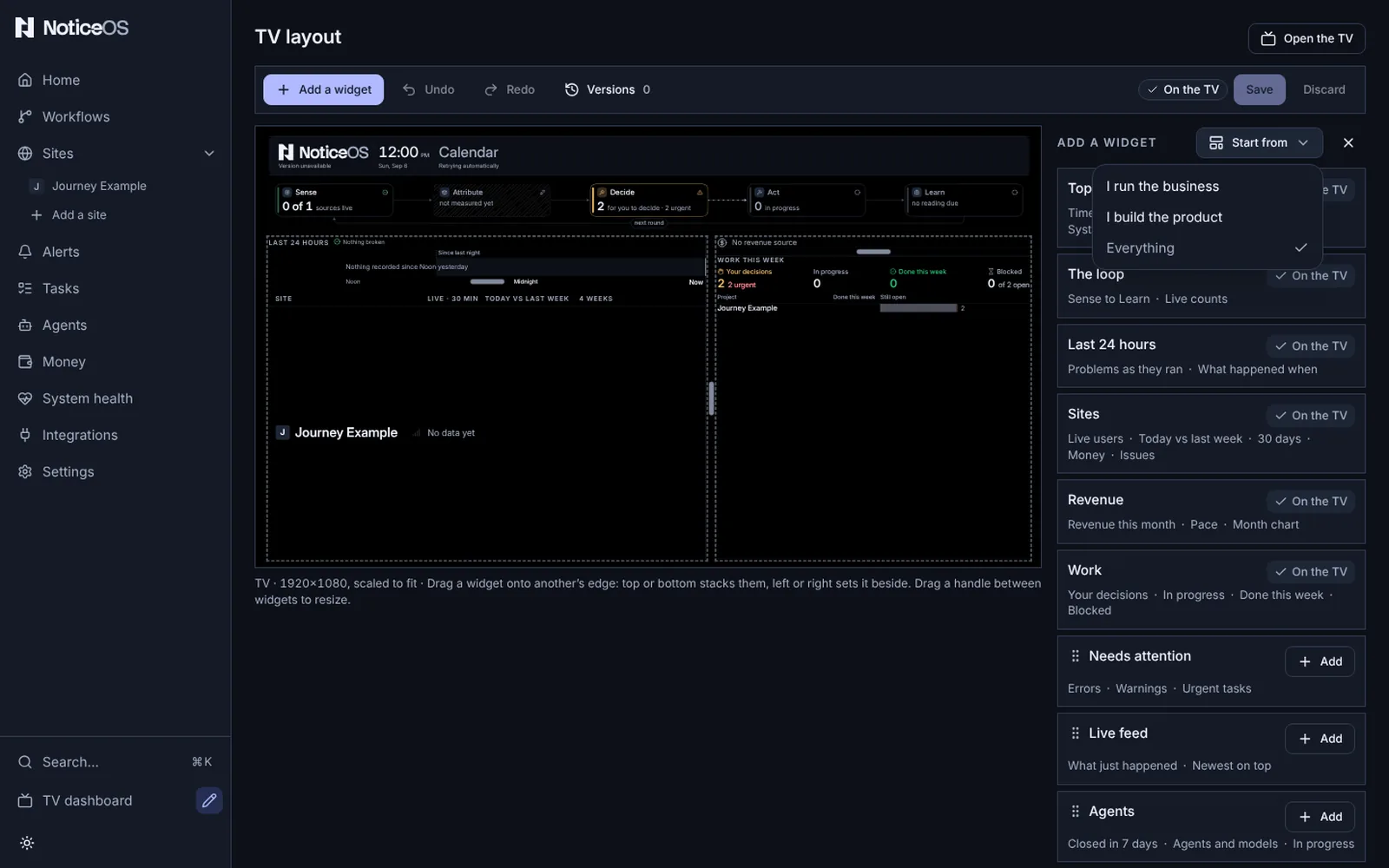
The whole arrangement on the TV copy is replaced by the preset. It is not on the TV until you select Save, and Undo puts back the arrangement you had. A version saved this way with no note is named Started from I run the business, or the view you chose.
Until any layout is saved, the TV shows the preset of the workspace's default view (Settings > General > Your view), and the editor opens on it.
Move a widget
Drag it by any part of it. As you drag, a line on the TV and a label beside it, such as Above Sites, show where it will go. They appear only where the widget can go:
| Drop it on another widget's | Label | What happens |
|---|---|---|
| top or bottom edge | Above, Below | the two stack in one column, the moved one above or below |
| left or right edge | Left of, Right of | it becomes a column of its own beside that widget's column, taking half its width |
| the band between two rows | New row | it gets a full-width row of its own there |
So to make two widgets share a column, drop one on the other's top or bottom edge. To take a widget out of a column, drop it on the left or right edge of any widget. When a column has only one widget left, the column is removed and the widget takes its place. An empty row is removed.
The moved widget is selected and briefly shows a coloured outline in its new place.
Without dragging
Every widget has a Move menu, on its toolbar on the TV and in its settings in the side panel. It can move a widget to every place a drag can, for use with a keyboard, on a phone, or when you prefer to choose from a list:
- Move up, Move down: one place up or down its column, then out into a row of its own. If a widget is alone in its row, the whole row moves with it.
- Move left, Move right: into the neighbouring column, at the same height. Two single widgets side by side swap places.
- Stack under…: under any other widget you name.
- Into its own column, Into a new row above, Into a new row below.
- Remove.
A direction that would not move it is greyed out. With a widget focused, Alt and an arrow key do the first four. After each move, a status message for screen readers describes where the widget went, and focus stays on the widget.
Resize
- By dragging: point at the gap between two columns, or between two widgets stacked in a column, and drag the handle. The size of each shows as you drag, and the handle snaps to a quarter, a third, a half, two thirds and three quarters. The handle stops before a neighbouring widget becomes too small to read. With the handle focused, the arrow keys move it a step and Page Up or Page Down jump to the next of those sizes.
- In one press: in the widget's settings, set Width (or Column width for a stacked widget) to ¼, ⅓, ½, ⅔ or ¾ of its row. Set Height to Fit content or Fill the rest, or for a stacked widget to a third, a half or two thirds of its column.
With Fit content a widget is as tall as what it shows, and widgets side by side in one row are as tall as the tallest of them. Revenue draws its month chart behind its figures, so at Fit content it is as tall as its lines of text, and beside Needs attention it is as tall as Needs attention. Work at Fit content is as tall as its figures and one line per project. Given less height than that, Work shows the projects that fit and counts the rest, such as +2 more projects. To give the site rows the most room, set Revenue and Work to Fit content and Sites to Fill the rest.
A widget drawn smaller than it can be read shows Too narrow for Sites (or Too short) in place of its content. Make it bigger or move it, and the widget's content is shown again.
Undo and save
- Undo and Redo (⌘Z and ⇧⌘Z, or Ctrl on Windows and Linux) step through every change since you opened the page, a whole resize drag as one step. Discard goes back to what is on the TV, and can itself be undone.
- In Version note, type a note if you want one. Leave it empty and the version is named by what changed, or Started from <view> when the layout is a view's preset.
- Select Save. The bar shows On the TV again, and the TV redraws the next time it refreshes its data.
If you leave the page with unsaved changes, you are asked to confirm first.
Versions
Versions in the bar lists every saved layout, newest first, each with Revert. Revert works like any other save: the layout it replaces is added to the history too, so nothing is lost. There is no confirmation step because you can always revert to an earlier version.
Check the fit
The Wall has a fixed height and nobody at the TV can scroll, so check that the layout does not grow taller than the screen. The editor checks the TV as you work and shows a caution chip when a layout would not fit, such as This layout runs 40 px past the TV.
- When the chip appears, make a widget's height Fill the rest, give a stacked widget a share of its column, narrow a widget, or remove one.
- If you run NoticeOS from source, run
pnpm audit:wall-fitafter adding sites or widgets. It measures the live Wall at the TV's size and reports anything that does not fit, including text that overflows its box.
TIP
On a landscape laptop the Wall shows the TV's layout scaled down; on a portrait tablet or a phone the widgets are stacked in one column. The editor sets the layout for the TV, and the other screens are derived from it. On a phone the copy of the TV screen is too small to drag on: select a widget and use its Move menu and sizes in the side panel.
Verify
- The bar shows On the TV, and the count beside Versions has gone up by one.
- No caution chip is shown, no widget shows Too narrow or Too short, and
pnpm audit:wall-fitreports no overflow. - The TV redraws with the new layout the next time it refreshes its data.
If it didn't work
- No line appears where you drop: the widget cannot go there. A row holds at most four columns, a column six widgets and the TV six rows, and each widget appears once.
- A widget in Add a widget shows On the TV: it is already placed. TV full means there is nowhere left to put one.
- The chip shows that the layout runs past the TV: see Check the fit.
- The TV still shows the old layout: it redraws the next time it refreshes its data, and keeps showing the old layout until then instead of going blank. See Troubleshooting.
The Wall's design is in doc 14, Design. The fit check: https://github.com/notice-cx/NoticeOS/blob/main/scripts/README.md#auditwall-fit--does-the-wall-still-fit-the-tv.