

TV dashboard
The Wall is the Tower's TV view: one screen at /wall, made for a television or a second monitor across the room. The sidebar calls it TV dashboard. It shows the same data as the Tower's pages, large enough to read from a distance, and updates when that data changes, so it can stay on all day with nobody touching it.
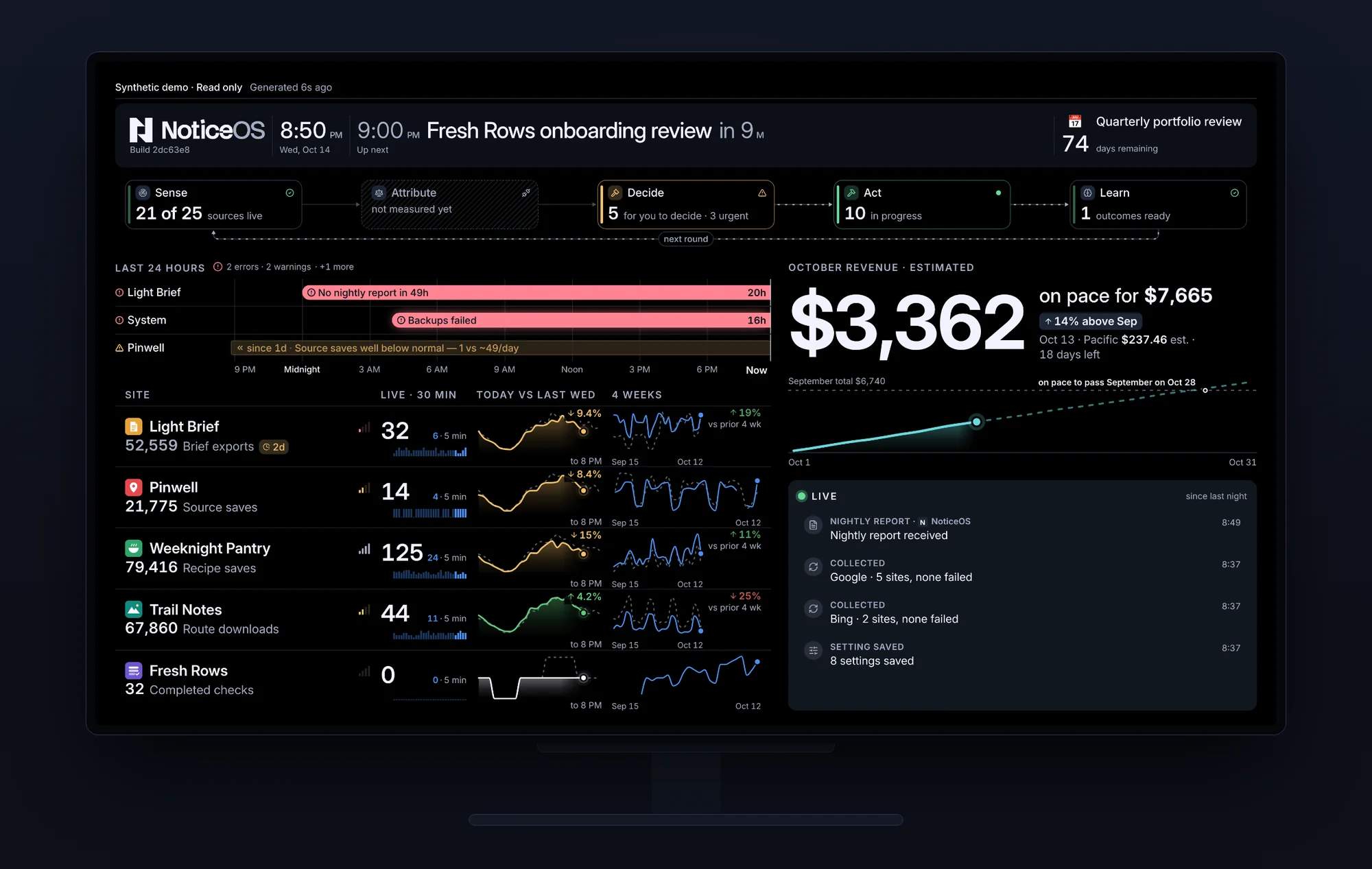
The Wall shows: the live count at each step of the loop, what is broken and since when, how each site is doing right now, whether the month is on track, and the state of the work.
What you see
The Wall is drawn from a layout you arrange in the Tower. It has no navigation and no controls; the small grey NoticeOS mark in the corner links back to Home. The default layout has six tiles: the strip and the loop across the top, then Last 24 hours over Sites on the left, beside Revenue this month over Work this week on the right.
Until a layout is saved, the Wall shows the preset of the workspace's default view, set in Settings → General:
| Workspace view | What the Wall shows |
|---|---|
| I run the business | the strip, then Site health over Revenue this month on the left, beside Needs attention over The agents · this week on the right |
| I build the product | the strip, then Revenue this month over Visitors by channel on the left, beside Sites over Work this week on the right |
| Everything, or no view saved | the default layout above |
A saved layout always replaces the preset. Changing the workspace view later changes the Wall only while no layout is saved.
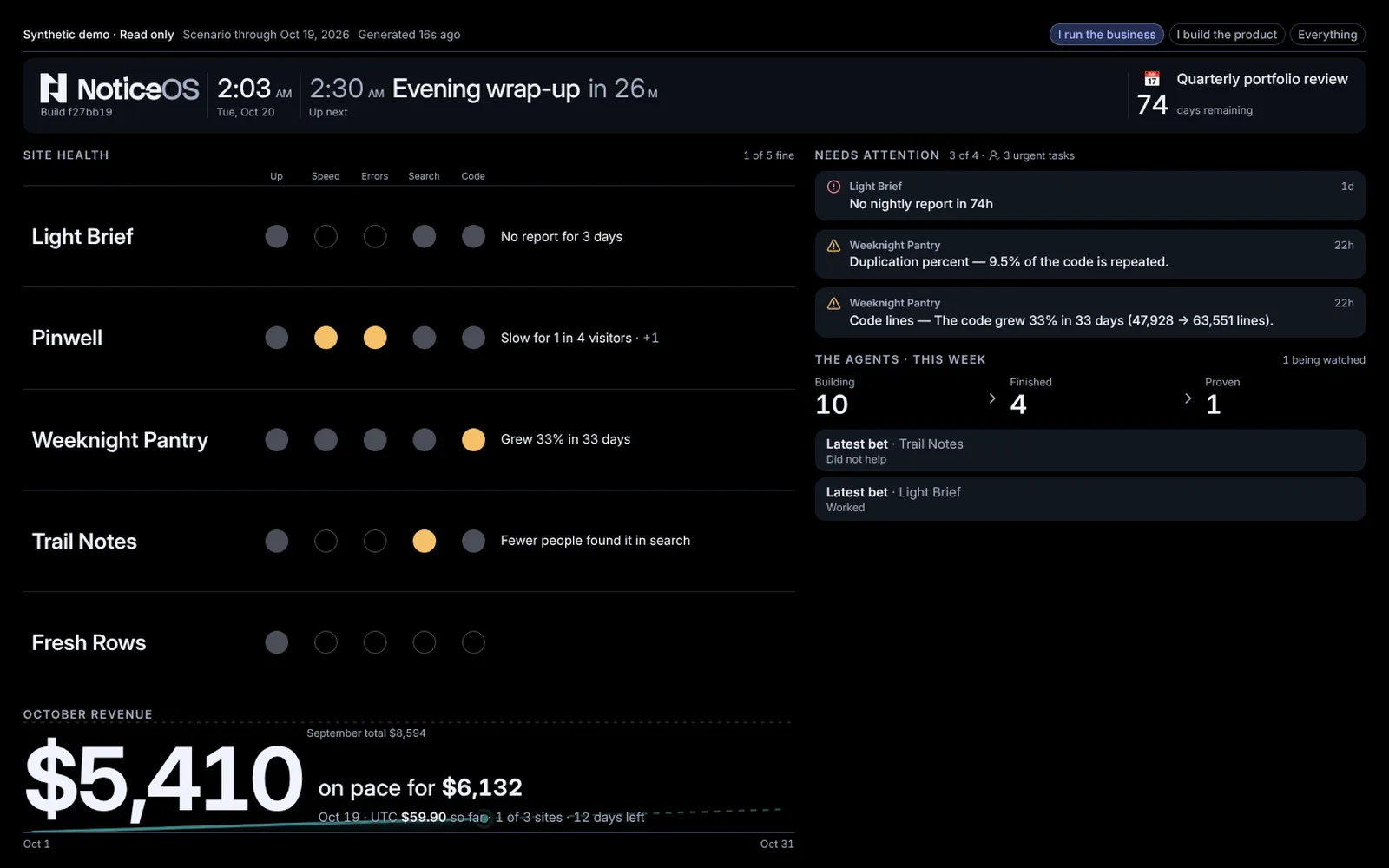
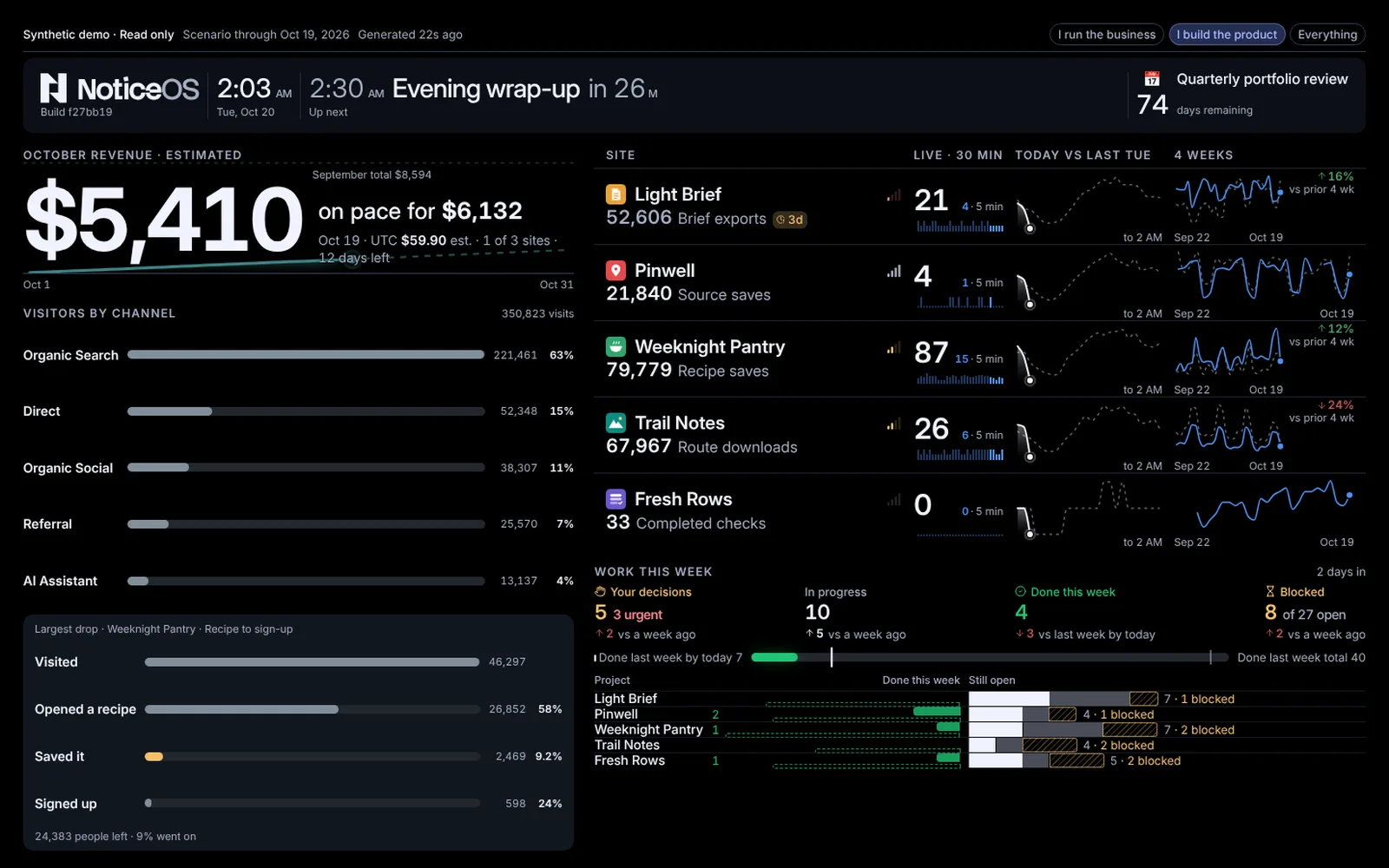
In the public demo, the Wall follows the view the visitor picks in the demo banner above it, or ?view= in its address: I run the business and I build the product show their presets, and Everything shows the demo's saved layout.
Top strip. The time, the next meeting from a connected calendar feed, and a countdown if one is set.
The loop. Sense, Attribute, Decide, Act and Learn across the screen, the five steps NoticeOS runs over and over (How NoticeOS works), each with its live count: the data sources working out of those you expect (and how many are failing), the decisions waiting for you, the work in progress, and the outcomes ready to read. A stage with no measurement yet shows not measured yet or not read instead of a number.
Last 24 hours. Each open problem as a bar on its site's row, from when it started to now, and what happened (shipped, resolved, money, wins) as marks on the same time axis. A problem older than the window is a bar clipped at the left with its age written on it. Backups that failed on two scheduled runs since the last good copy are one problem on the System row, Backups failing · last good copy 12d ago (or no good copy yet), which ends when a backup completes. The heading counts the errors and warnings, or shows Nothing broken; on a TV the tile draws the three worst lines and counts any other problems as +2 more. A dashed rule marks Since last night. The same problems, at a smaller size, are the issue mark beside a site's name.
Sites. One row per site, in the order you set. The columns are Site, live people right now, Today vs Thursday (today's hours against the same weekday last week, drawn solid against a dashed last week), 4 weeks as a small trend, and the month's money. Counts are in people.
Revenue this month. The month's figure, its pace, and the month's line against last month's total. A dashed part of the line is a projection, never a measurement. On a TV the chart is drawn behind the figures in lower contrast and fills the tile, so the tile is only as tall as its lines of text; beside Needs attention it is as tall as Needs attention. The day the month passes last month's total, and that total, are written on the chart where the figures leave room for them, and left out where they do not. On a phone the tile is only as tall as its text, which is too short for a chart behind it, so the chart is drawn under the figures.
Work this week. The heading shows how far into the week today is (2 days in). The week is the calendar week, Monday to Sunday, in the installation's time zone (Settings → General); before this, the tile counted the last seven days. Four figures follow: Your decisions, In progress, Done this week and Blocked. Done this week counts the tasks closed with the resolution Done whose close time falls in this week; a close with any other resolution (Won't do, Duplicate, Can't reproduce, Already handled) is not in it. Done last week counts the same way over the week before. Both are counted from each closed task's own close time and resolution, the same count the Tasks page shows, and a figure carries no +: 2 days in is how far the week has run. Under each figure a change chip shows its move: an arrow, the count and vs a week ago for Your decisions, In progress and Blocked (the count now against the count seven days before), and vs last week by today for Done this week (this week so far against last week up to the same day and time). A figure that did not move shows level with a week ago. More done is green; more decisions or more blocked is red; in progress has no colour. A figure whose earlier count is not recorded has no chip. Under the figures one bar draws Done this week filled against last week: a tick where Done last week by today stood, and a thin line at Done last week total. Then one row per project: what got done this week extends left, with last week's done as a dashed outline under it, and what is still open extends right. In progress, Blocked and Your decisions a week ago come from the task history, whose days run midnight to midnight UTC. It shows counts only, never a task's text. On a TV the tile is only as tall as its content: where the tile is wide enough, the heading and the four figures share one line, each figure's change chip beside its number, and the words of the week bar sit beside the bar; each project is one line as tall as its bar. When the layout gives the tile less height than every project needs (Fill the rest or a share of its column), it shows the projects that fit and one line that counts the rest, such as +2 more projects; it never cuts a row or scrolls.
Site health. One row per site with five dots under Up, Speed, Errors, Search and Code, the same facts as Home's Site health and the site's Health tab (The Health tab). A red dot is a site that is down, an amber dot a fact worth a look, a grey dot a fact that is fine and an empty ring a fact not measured yet. Beside each row is its worst problem, such as The home page did not load, with +2 when the row has more. A site whose nightly report is late has No report for 2 days (or the hours, under two days) as its problem and is not counted as fine. The heading counts the sites that are fine, such as 4 of 5 fine. The rows share the widget's height, and the names and dots grow with them up to the size of the TV's large figures.
The agents · this week. Three figures, Building, Finished and Proven, joined by arrows: the tasks in progress, the tasks done this week and the sites whose newest measured change worked. N being watched counts the changes still being measured. Under them, up to three of the newest pieces of work, each with its site and one line, or Nothing finished yet. On the TV the figures and the lines share the widget's height. A figure that cannot be counted is a dash.
Visitors by channel. Every site's visits added up by channel, one bar per channel on one scale with its visits and its share, the smallest channels added into Other, and the total visits beside the heading. Under the bars, Largest drop names the site, the funnel and the two steps where the most people leave, with how many left and what share went on. With no channel data: No channel split yet.
These three tiles are placed by the business and product presets and can be added to any layout.
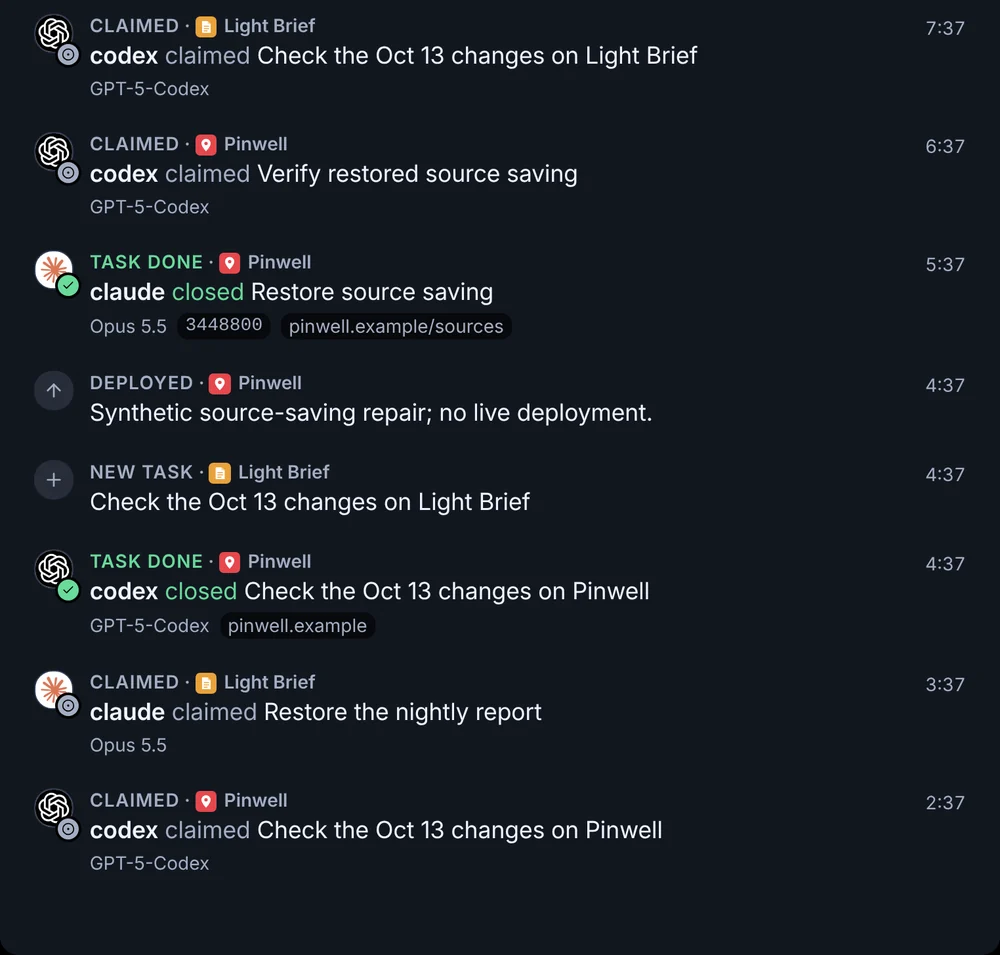
Three more tiles are available in the tile library: Needs attention (the top three problems, each as one sentence with its site), Live feed (what happened since last night, newest on top, from stored events only; a line names its site with the site's icon for a dark background: the dark-scheme icon its home page declares, else its light icon, else its /favicon.ico; a line for a task an agent filed, claimed or closed shows the agent's logo, its name and its model, and a close shows its commit and links; a close is labelled Task done, or, when nothing shipped, with its resolution: Won't do, Duplicate, Can't reproduce or Already handled, in grey with a slashed circle; a Chosen line shows the person who picked one of a task's choices, the option and the task, as "Dana chose (b) Keep both on Pick the page") and Agents (each agent and the model it named, ranked by tasks closed as Done in the last 7 days, with how many tasks the agents hold now). Add them at /wall/edit.
A site whose TV switch is off is in no tile, whatever a tile's own site list holds: not in the loop's counts, the last 24 hours, the sites, the work, the problems or the live feed. Revenue this month still counts its money. A site whose Work this week switch is off has no row in Work this week and stays in every other tile. A retired site has both switches off until you turn one on; shown, it reads Retired with no health level, and it counts in none of the loop's numbers and none of the problems. See Where each site shows.
On a landscape laptop the television's layout is scaled by one factor, with small type kept readable. On a portrait tablet or a phone the tiles are stacked in one column in a fixed order: the strip, Revenue this month, Sites, Last 24 hours, Needs attention, Work this week, Agents, Live feed, the loop, Site health, The agents · this week and Visitors by channel, leaving out the tiles the layout does not have. On a television the background is true black, so unused pixels emit no light.
What you can do
- Open the Wall from the TV dashboard entry at the bottom of the sidebar, or at
/wall. - Select the NoticeOS mark in the corner to return to Home.
- Drag the widgets into place, stack and resize them, and set the site order in the Tower at
/wall/edit. See Arrange the Wall. - Start the layout from a view's preset with Add a widget > Start from at
/wall/edit. See Start from a view's preset. - Drag the sites into order and switch a site off the TV or out of Work this week with Arrange on the Sites page.
States and labels
- Calendar in the top strip means no meeting is due; Reconnecting means the last calendar read failed. Reconnecting beside Last 24 hours or in the live feed means the last read of what happened failed; the marks on screen are the last good ones.
- Nothing broken on Last 24 hours means no problem is open. On Needs attention, Nothing needs attention means nothing is open and Nothing broken means the only open items are tasks.
- Tasks unknown means no task count has been read yet. 3+ on Your decisions is a lower bound: not every project's decisions were counted. stale means the last task count is old, so a count of zero is shown as stale instead of 0. A lower bound or a stale count has no change chip.
- A change chip on a work figure is green when the figure moved the way that is better for it (more done, fewer decisions, fewer blocked), red when it moved the other way, and has no colour when it did not move or, for In progress, either way. The arrow and the words say the same without the colour.
- Today / latest day replaces Today vs Thursday when the site reports by day.
- Refreshed 3 min ago · reconnecting means a read failed; the Wall keeps the last good values and shows how old they are. It never clears the screen and never draws zero for a failed read.
- A halo on a point marks the current moment; a ring that slowly grows and fades, again and again, marks a series still being counted. Both stop when your device is set to reduce motion.
- Hollow points are days still being counted; plain dots are settled.
- A dashed, low-contrast line is the comparison; a dashed line in the series' own colour is a projection.
- The first and last date are shown beside each small chart. There are no legends.
- Each colour has one meaning: cyan is money, azure is people, red and amber are severity, green is a win, and on a change chip green and red are a move for the better and for the worse. Nothing else is coloured. State is never shown by colour alone; every colour has a word or a symbol beside it.
- A figure the Wall cannot read is shown as a label, not a dash: a site with no live read shows a label in its cell, and a site still setting up shows no number instead of a zero.
- DEV in the caption means the app runs from a checkout in development mode.
Related guides
- Arrange the Wall
- Settings
- Home
- The Wall's design and chart language, in doc 14, Design