

Sites
A site is one website or product you added to NoticeOS. The Sites page compares them all side by side, and each site's name opens its own page, which shows everything about that one site.
The Sites page shows which sites need your attention.
What you see
The Sites page starts with a one-line summary: 2 of 6 sites need attention, with their names, or the count of sites that are fine, beside the month's pace and yesterday's visitors against the same day a week before. Add a site is in the header. Under the summary, one bar splits the sites by status, worst first: Off track in red, At risk in amber, the other statuses in grey. Then the sites compared, one row per site:
| Column | What it holds |
|---|---|
| Site | its name, and under it its status: Setting up, On track, Monitor only, At risk, Off track, Retired, coloured only when it is a problem |
| People a day | the last four weeks as a line, and the latest finished day's count |
| Yesterday | yesterday's revenue and its change on the same day a week before |
| Share of month | the site's part of the month's revenue so far |
| Sources | one mark per data source, coloured by its state, and how many are live of the ones the site uses |
A site's tasks, search clicks and ledger are on its own tabs. Columns are hidden as the window narrows, the name last: on a phone each row shows the site, its status and yesterday's revenue.
The page lists the sites whose Home and Sites list switch is on. The summary, the status bar and the stage counts count only those; the month's pace and yesterday's visitors stay the whole portfolio's. When a site is left out, the line above the rows counts it: 6 sites · 2 hidden.
A site's page has a header with the site's name, its domain as a link, and its status, which on hover shows how many alerts are open. Under the header are the tabs: Overview, Growth, Money, Search, Codebase, Health, Alerts, Tasks, Activity, Data sources and Settings. The tab is in the address, so a link opens the right one.
Which tabs are shown follows your view (Settings → General → Your view):
| View | Tabs |
|---|---|
| I run the business | Overview, Money, Search, Health, Tasks, Settings |
| I build the product | Overview, Growth, Money, Search, Codebase, Health, Tasks, Data sources, Settings |
| Everything | every tab |
A link to a tab your view leaves out still opens it, with that tab added at the end of the row.
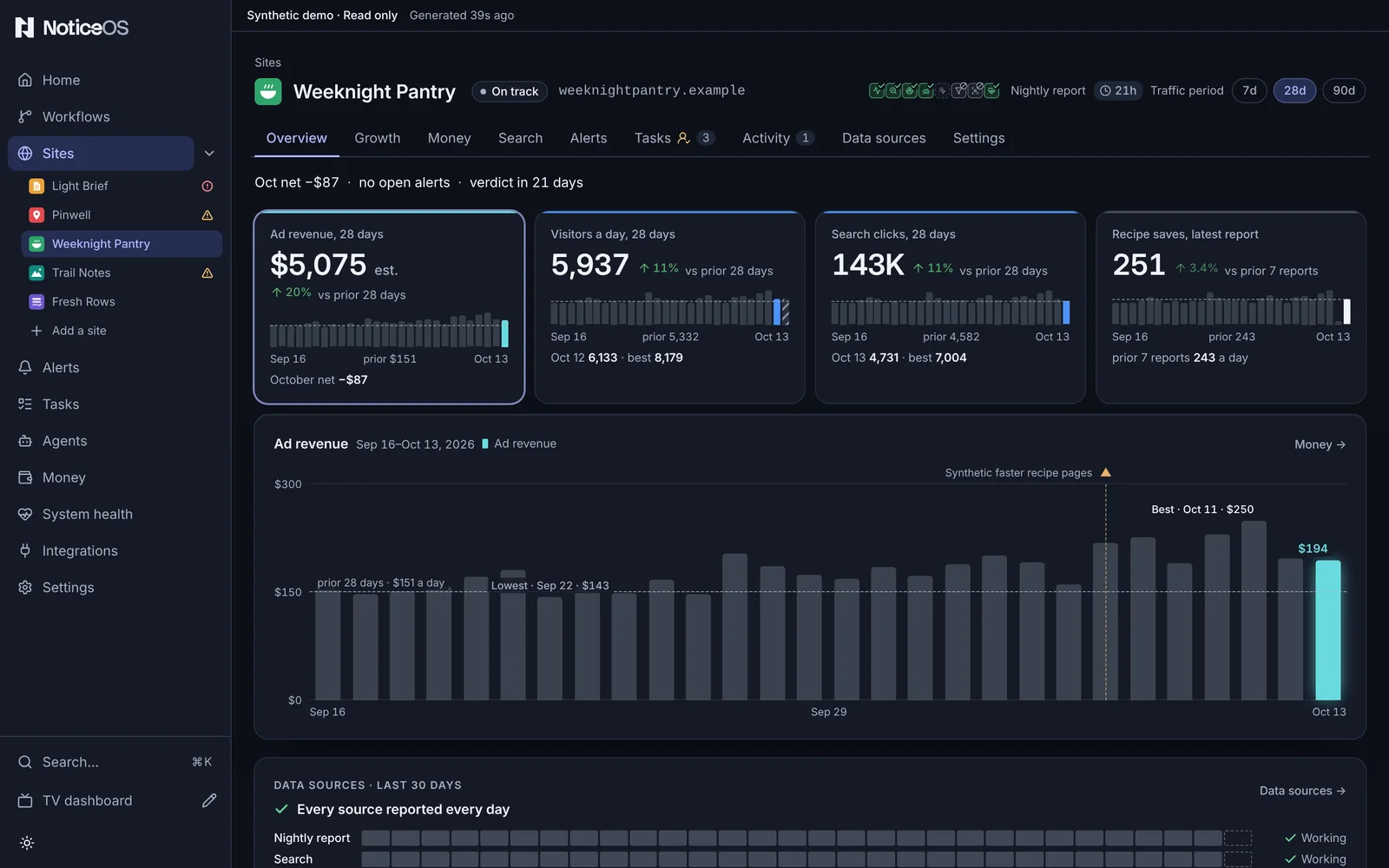
Overview shows the most important figures on the first screen. A row of figures for money, people, search and the site's one product figure, each with its window, its change against the days before, its recent days as bars with their dates, and one line of context. Press a figure to draw it on the chart: bars with a dashed line at the level of the days before, the best and lowest day labelled, every shipped change a labelled mark, and shaded spans for an open alert (with the rule's normal range), an outcome check or days not reported. Then Data sources · last 30 days, one row per source and one square per day, with the source that failed most recently or missed the most days first, and Open alerts for anything the chart does not already show. Under them: Needs attention, What matters, Bets (the site's outcome checks, open ones first with the days left to their verdict), Search movers, Product use and the site's totals. A provider's name appears only as a chart key beside its own line.
The other tabs:
- Growth: what changed against the days before, one row per series, above the Audience and search charts; then the tracked search terms and product use.
- Money: the month as one sum, revenue minus cost equals net. Beside it, the month's daily ad revenue against a usual day and the month so far against last month, both marked as estimates. Then daily revenue over the chosen range and the site's ledger, as on the Money page.
- Search: Queries that moved, each drawn at its position on the results page now and before; the tracked terms, each with its rank over time; then Search context: links, AI mentions, competitors and opportunities.
- Codebase: one sentence on how the code changed in 30 days, beside the site's visitors; five figures, Lines of code, Repeated code, Unused code, Hard-to-change functions and Test coverage by size, each with its change and its last 90 days; under them a row of three checks the site's own workflow sends, Build and Tests (Passed or Failed, in red when failed, with how many of the last 30 days' reports passed, such as 4 of 5 reports passed in 30 days) and Vulnerable packages (a count with its change); lines of code over time with deploys marked; the languages; and the findings, Repeated blocks, Hard-to-change functions, Unused and Vulnerable packages (one row, such as 3 packages have a known vulnerability), each row with Make a task. Before the first report it lists the ways to send one. See Measure your codebase.
- Health: whether the site is up, fast, free of errors, easy to find in search and built on steady code, as five words. See The Health tab.
- Alerts: the last 30 days as a timeline, one row per condition, then Open with each reading against its normal range, Snoozed, No longer current and History.
- Tasks: the site's slice of the Tasks board: its decisions, Urgent, Blocked and Done this week for the site's project, each with its change since last week, and In and out with done this week against last week.
- Activity: the last 90 days of changes and bets on one timeline, a bet marked where it was registered and again where its verdict was recorded. Under it, the Timeline of recorded changes and the bets still being measured.
- Data sources: how the site's data arrives, drawn as one diagram with a failing source outlined in red; then one row per source with Connect, Not using and the mapping fields, and More sources for the optional ones. Site health shows the daily checks of the site itself: Served home page (words of visible text), AI crawler access, Sitemap (URLs listed), Security headers (how many of six headers the home page sends, such as 4 of 6, with the missing ones named) and Page speed (the 75th percentile of Largest Contentful Paint, Interaction to Next Paint and Cumulative Layout Shift for phones, each with good, needs improvement or poor, or not measured yet before the first reading).
- Settings: one column of cards: Identity, Manual lifecycle stage, Where it shows, Automation, Data collection, Card totals, Alert rules in force, Tracked search terms and Archive. Identity holds the site's Display name, Owning entity, Domain and Site id, then Icons: what NoticeOS found the last time it read the site's home page (Icons declared, Nothing declared, Page unreachable or Not read yet), when that was, such as Read 2h ago, and Read again. Under them, Light icon and Dark icon each show one icon on a white square and on a black square, its address, and a field for an address of your own. A site with no domain, a retired site and the System have no Icons: the daily read does not cover them. Where it shows holds the site's place in your order, such as 3rd of 8, with Move up and Move down, its three switches, and Arrange the sites, which opens Arrange.
The Health tab
The Health tab shows the same five facts as the dots in Home's Site health and on the TV, as one row of five buttons. Each button shows the fact's name, its word in large type, its problem when it has one, and as of the date of the reading behind it. The word is red when the site is down, amber when the fact is worth a look and grey when it is fine; a fact that is not measured yet has a dashed border.
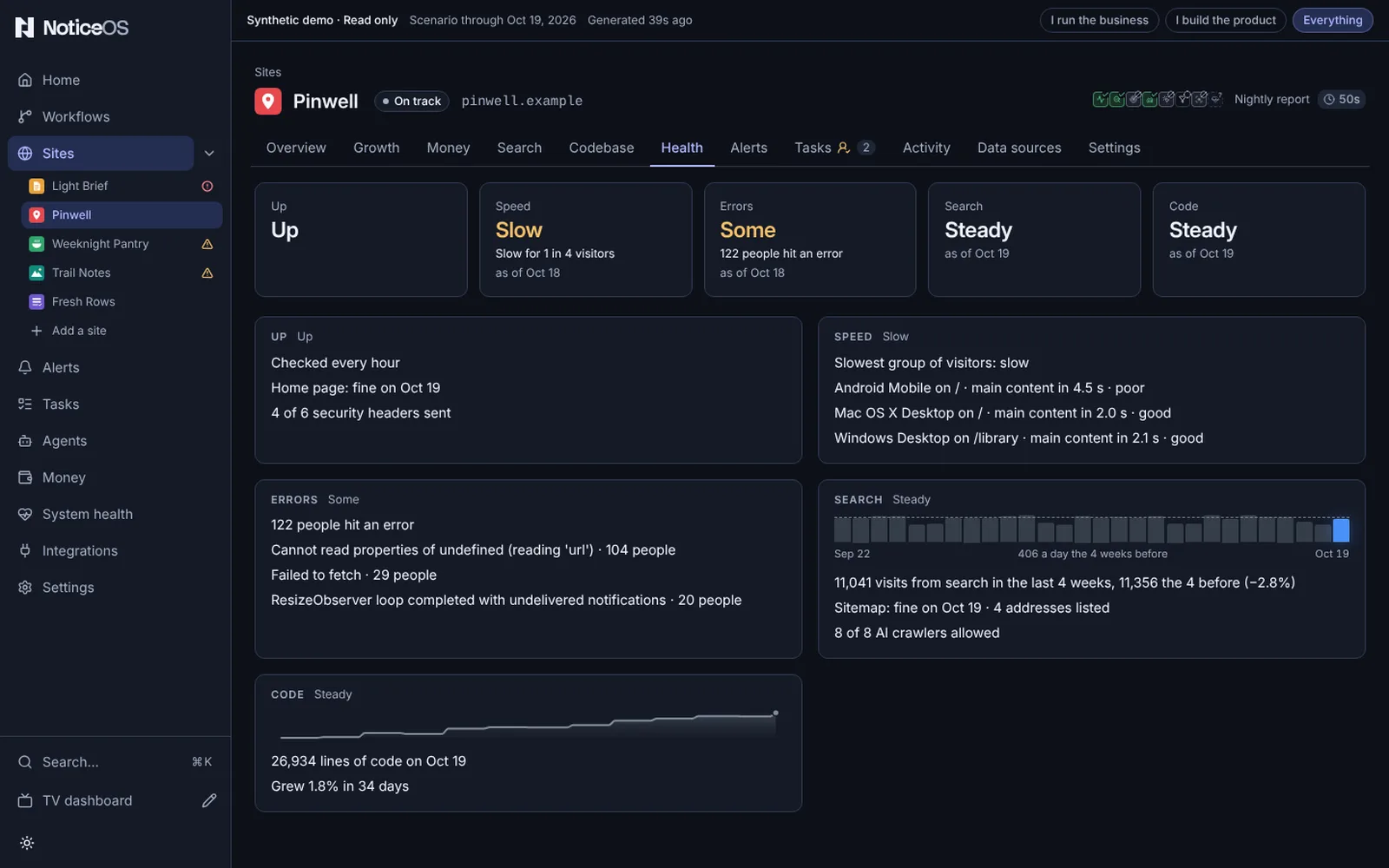
| Button | What it reads | Words |
|---|---|---|
| Up | the hourly uptime check of the home page, and the open alert when the home page did not load | Up, Down (red), Not checked lately when the hourly check has not run lately |
| Speed | the page-speed readings visitors' browsers recorded, from the site's product analytics | Fast, OK, Slow when one visitor in four or more waits, or when the slowest group is rated poor |
| Errors | the errors visitors hit, from the site's product analytics | None, Few, Some when the error rule fires or the reading found JavaScript errors |
| Search | visits from search over the last four weeks against the four before, and the sitemap check | Steady, Growing at a 10% rise, Falling at a 10% drop, Sitemap failing while the sitemap alert is open |
| Code | the site's newest code report against the one about a month before | Steady, Growing fast when the code grew 25% or more |
Under the row, every fact has a panel with the readings behind it, titled with the fact and its word, in the same order. Pressing a button scrolls to its panel and outlines it; pressing it again removes the outline. When the site's nightly report is late, a line over the buttons names it, such as No report for 2 days · the readings below may be older. The panels list:
- Up: Checked every hour, or The hourly check has not run lately; the latest home page check and its date, such as Home page: fine on Oct 14; and how many security headers the home page sends, such as 4 of 6 security headers sent.
- Speed: the slowest group of visitors (fast, OK or slow), then up to three groups, each with its page, how long the main content took to show, such as main content in 2.4 s, and its rating.
- Errors: how many people hit an error, or People who hit an error: not counted, then up to three errors, each with how many people hit it.
- Search: visits from search a day over the last four weeks as bars, with a dashed line at the daily average of the four weeks before; then visits from search in the last four weeks with the four before and the change, such as 1,240 visits from search in the last 4 weeks, 1,100 the 4 before (+13%); the latest sitemap check with how many addresses it lists; and how many AI crawlers are allowed, naming the blocked ones.
- Code: a line of lines of code over the last 90 days once there are three reports, then the lines of code on the newest report's date and how much they grew or shrank in about 30 days, or Too early to compare with a month before.
A fact that is not measured yet shows Not measured yet in its panel with the link that connects it.
A fact with no reading shows Not measured yet with a link: Connect a data feed → opens the site's Data sources, and for Code, Set up the code report → opens the setup on the Codebase tab. A retired site and a site not launched yet have every fact not measured yet.
What you can do
- Add a site opens the same dialog Home uses.
- The legend of the bar that splits the sites by status is the Health filter: press 2 at risk to show only those sites, press it again to show them all.
- Order puts the sites in Your order (the saved order Home and the TV use), Needs attention first, by Money this month, by People or A–Z. The stage list narrows to one lifecycle stage. On a phone both are behind Order & stage.
- Arrange, beside the stage list, lists every site in Your order, hidden ones included. Drag a site by its grip to a new place: a line and a label such as Above Northwind show where it lands before you let go. Move Northwind up and Move Northwind down on each row make the same move with a keyboard or on a phone. Each row has the site's three switches, Home and Sites list, TV and Work this week. A move and a switch save at once, each with Undo in its message: Site order saved, Saved — Northwind hidden on the TV. Done returns to the list in the order you chose, with the hidden sites left out and counted. 2 hidden beside the count also opens Arrange, and so does Arrange the sites in the command palette.
- A filtered list shows how many sites it includes, with Clear. Every choice is in the address, so a link includes it.
- A site's name opens its page; the domain link on that page opens the site itself.
- Press a figure on the Overview to draw it on the chart; arrow keys step through its days.
- Hover, focus or tap a mark on the Overview chart to read the change or outcome check behind it.
- On Activity, Log a change opens one form with two choices: Something happened records a change, and Watch an outcome registers an outcome check against one.
- On Health, press one of the five buttons to show its readings; press it again to hide them.
- On Codebase, Make a task under Vulnerable packages opens the task form with a title such as Fix 3 vulnerable packages in Northwind filled in.
- On Data sources, Connect opens the connect panel and Not using records a reason for skipping a source.
- On Settings, the cards hold everything that applies to this one site.
- On Identity, Read again reads the site's home page now, the same read the Search accessibility checks job makes once a day, and shows what it found and when.
- On Identity, type an image address in Light icon or Dark icon and press Save to draw that image in place of the icon the page declares: Light icon on light screens, Dark icon on dark screens and the TV. The message names the change, such as Saved — Light icon for Northwind, with Undo, and the icon reads Set here with the page's own address under it as From the page. Save an empty field to draw the page's icon again.
Where each site shows
Each site has three switches:
| Switch | When it is on, the site shows |
|---|---|
| Home and Sites list | as a row on Home (the data sources grid, the sites and the last 24 hours) and on the Sites page |
| TV | in every widget on the TV |
| Work this week | as a project row in the TV's Work this week, while its TV switch is on too |
The switches are on every row of Arrange on the Sites page, on the Sites card of Settings > TV dashboard, and on the site's own Where it shows card. A switch with a tick is on; one with a crossed-out eye is off.
A switch nobody has set follows the site's lifecycle stage: on for every stage except Retired, and off for a retired site. A switch you set stays as you set it when the site's stage changes, so a site you take off the TV stays off after you restore it.
A retired site that is shown reads Retired wherever it is: its status on Home, the Sites page, the TV and its own page, a Retired chip beside its name in Arrange, on the Sites card and in the TV editor's site lists, and · Retired after its project's name in the Tasks project list. It is never counted among the sites that need you: not in the Sites page's summary or status bar, not in Home's count of what is broken or its Problems, and not in the TV's loop or problems. Its alerts stay on Alerts and its tasks on the Tasks board. Restoring it to another stage turns every switch you did not set back on.
A site that is not retired and has its switches off still collects data, raises alerts and files tasks. Its problems are still counted on Home and listed under Problems and on Alerts, its tasks stay on the Tasks board, and its money and visitors stay in the month's figures. Revenue this month on the TV counts every site's money.
The switches are stored in config/tower.json at sites, by site id, and are exported with the rest of the configuration. The Light icon and Dark icon addresses are stored in the same site entry.
States and labels
- A site that reported nothing shows a label in its row: no visitors reported, no revenue, never a zero.
- With no sites the page shows No sites yet; with one, it is that site's row.
- 2 hidden beside the count is how many sites have their Home and Sites list switch off. Every site is hidden means every site's switch is off.
- A site with no numbers yet opens on Data sources instead of an empty Overview.
- When Read again reads nothing, the line beside it says why: Schedule paused (the Search accessibility checks job is paused on Settings), Not read for this site (the site was retired after the page opened), Needs a database update (the store has no table for icon reads yet), No network · nothing read (NoticeOS itself could not reach the network) or Read failed · try again.
- Page unreachable keeps the icons from the last read that reached the page.
- A hollow point is a day still being counted; it fills in once the day is complete.
- A dashed line is a projection or last week's comparison, never a measurement.
- A bracketed day on the axis is a day that cannot be compared with others, such as a day a reporting time zone changed; it is not coloured as better or worse.
- A dash in a figure marks a missing value. Hover over it for the reason.
- unknown means there is not enough data for a figure. A measured zero is different: it is drawn as zero.