

System health
System health shows the results of NoticeOS's checks on itself. Every other page shows the numbers that arrived; this one shows whether they arrived: whether each connection is collecting, whether the scheduled jobs ran, which credentials are about to expire and how much of the month's data budget is spent. Open it when Home's System row is red, or when a number looks stale.
The System health page shows whether NoticeOS is working, and if not, what broke and where.
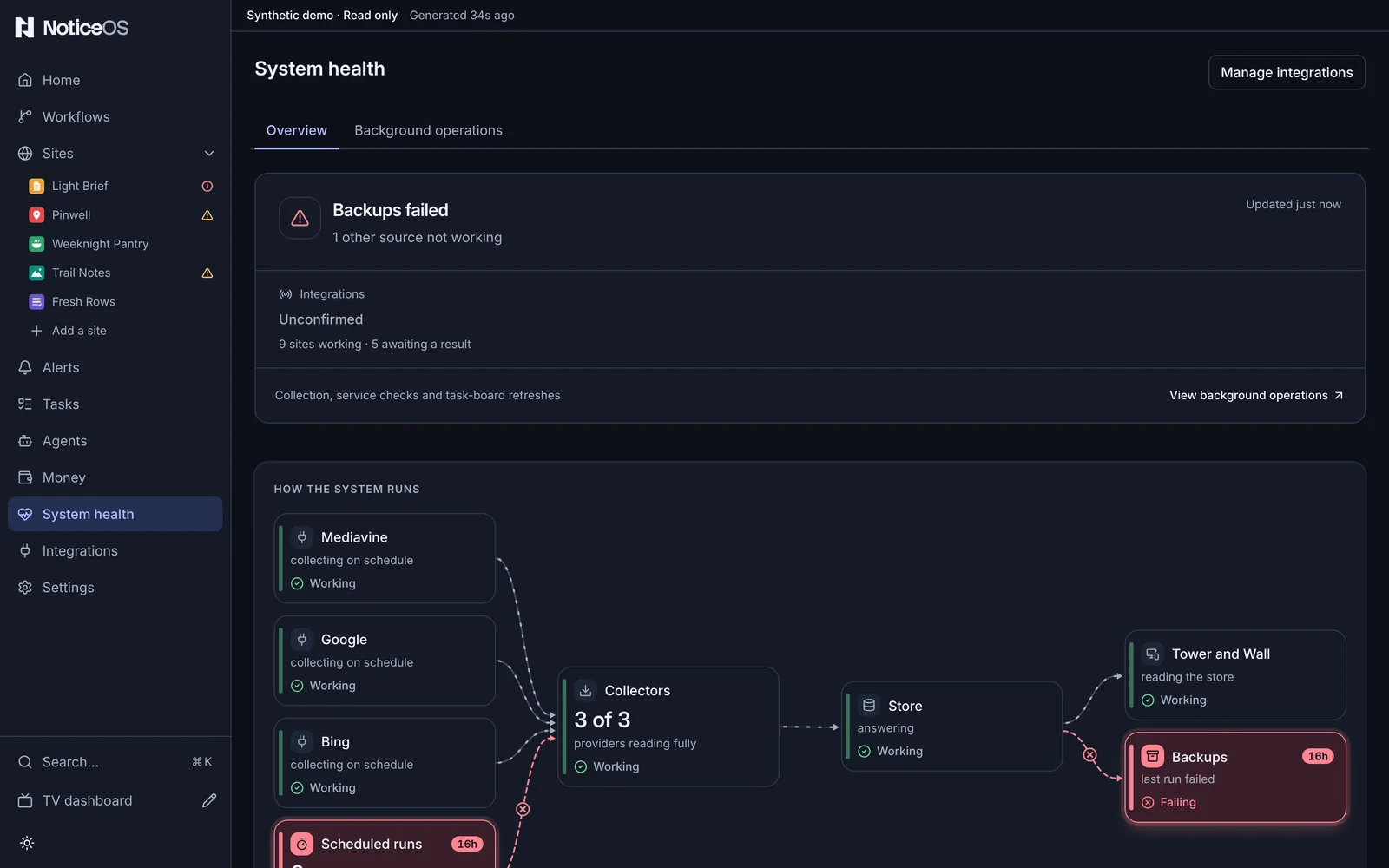
What you see
Two tabs: Overview (/health) and Background operations (/health/operations). Manage integrations in the header opens Integrations.
Overview
The status. One line sums up the page: Checks are reporting normally, or the most serious system issue, in the same words Home uses: Needs attention, Current health is unconfirmed or Some connections need setup. The line under it lists the rest, and Updated shows how recent the data is. Only the checks that are not fine get a cell of their own: Scheduler, Live execution tracking, Execution history and Integrations. Up to three failed background operations follow, each opening its run, and the footer lists what runs in the background, with View background operations.

How the System runs. One diagram of NoticeOS's own parts: the connected providers feeding the Collectors, the collectors filling the Store, the store serving the Tower and Wall and copied by the Backups, and the Scheduled runs driving the collectors. The broken part is outlined in red; a part that nothing measures yet is shown as idle, not as healthy. Backups shows the age of the newest completed backup (last good copy 12d ago, or no good copy yet), amber after one failed scheduled backup and red after two, dated from the first failure.
Scheduled jobs · last 7 days. One row per background job and one cell per day, with a count of runs, failures and missed days. A failure is the one thing coloured red; a missed day is amber; a hatched day is one the history no longer holds; it does not mean the job did not run. When nothing is wrong it shows Nothing failed or missed.
Connections. One status per provider connection, and under each the sites it serves with the time of their last success.
Other sources. What to do about the sources no provider account collects, such as a site's own nightly report, uptime or deploy history: one row per action, with the sources it would restore and Open site sources or Open integrations.
Oldest source evidence. Once three days are recorded, a daily line of how old the stalest source's newest evidence was, failed attempts included, with the days no snapshot was kept counted above it.
Latest evidence. The five sources whose latest data arrived longest ago, each with how long ago.
Every source, site by site. The full grid: every data source against every site, each cell its status, with a strip counting the statuses.
Credential expiry and data costs. Expiring: how many credentials expire within 14 days. Data spend: the month's metered spend against the monthly data cap, with Cap reached when it is all spent.
Background operations
The jobs that keep NoticeOS running: collection, freshness checks, the NoticeOS report, task service checks and backups. It works like Workflows: the summary (No operations need attention), Activity and Schedule tabs, the same filters, and a page per job with its stages and recent runs.
What you can do
- Select a failed operation, a red cell in Scheduled jobs, or a job's name to open its run and see which stage failed.
- Edit schedule on a job's page changes when it runs. A collection's schedule is edited with the collection instead: the job's page offers Edit in Integrations for one a connection feeds, or Edit in Settings for one no connection feeds.
- Open site sources or Open integrations on an Other sources row to fix what it names.
- Manage integrations to reconnect a failing provider.
- Retry on the Last recorded snapshot banner to fetch the data again.
States and labels
- Unconfirmed means NoticeOS has no recent enough report from that part to confirm that it works. It is never shown as fine.
- Last recorded snapshot, with its age, means the page is showing an older reading because the latest could not be fetched.
- Monitoring incomplete on Connections means some connections could not be checked.
- One connection uses a legacy credential names a provider whose credential is still stored in the environment rather than in the product; Manage connection opens Integrations, and Secrets and credentials moves it in.
- Nothing to set up means every source outside the provider connections is accounted for.
- No scheduled jobs on this installation and Run history could not be read show why the week of runs is empty.
- A dash for Expiring means the credential store has not returned a result.
Related guides
- Scheduled jobs, every job with its default time
- Troubleshooting
- Connect data sources
- Budgets and the kill switch
- How each source's health is observed, in doc 24, Integration monitoring