

Settings
The Settings page shows the settings that apply to the whole installation, and where to change them.
What you see
Tabs across the top, the same as on a site's page, open on General. Each tab has its own address (/settings/alert-rules, /settings/task-projects), so a link opens it; an older link such as /settings#task-hub still opens its tab. Sites have their own Settings tab; this page holds the settings that apply to all of them.
General
Your view is the first panel. It shows three choices, each with one line under it: I run the business, I build the product and Everything. The chosen view sets which pages the sidebar lists, which parts of Home are shown and in what order (see Home), and which tabs a site's page shows. The choice changes nothing another person sees. A hosted workspace keeps it per person, so it is the same on every device you sign in on; a standalone installation keeps it in this browser. Search (⌘K) lists every page in every view.
At the top of Home lists your picks from What matters most?, in the order you picked them, such as Money · Costs, or Nothing picked. Each pick moves its part of Home to the top when your view shows that part.
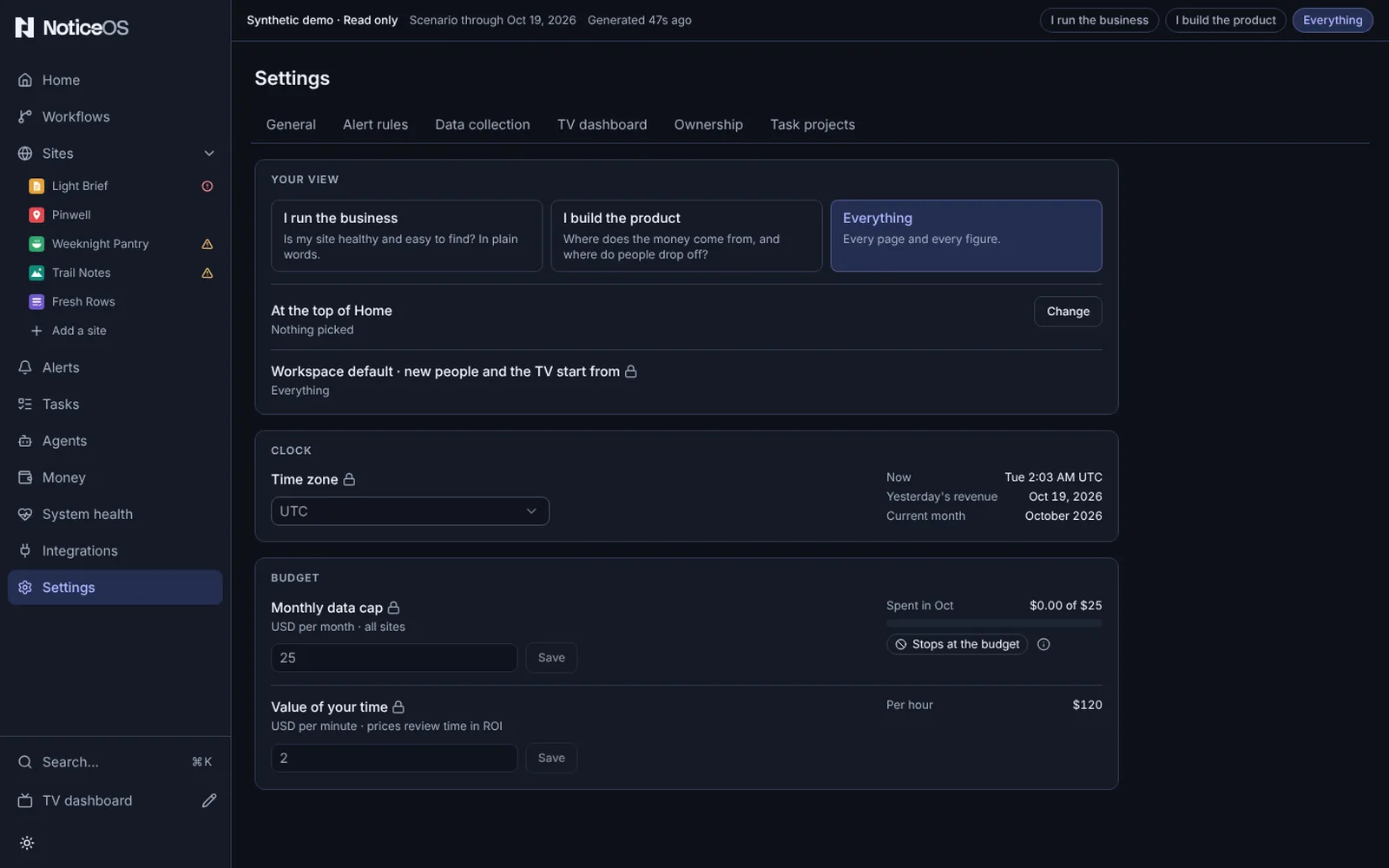
Workspace default · new people and the TV start from shows the view a person sees before choosing one, and the view whose preset the TV shows while no TV layout is saved (TV dashboard): the saved view, or Everything when none is saved. It is stored in config/tower.json at /view.
Time zone. Every daily figure is calculated in one zone, including which date is yesterday's revenue and which month is current. Your device's zone is first in the list, marked · this device. The preview shows Now, Yesterday's revenue and Current month in the chosen zone.
Monthly data cap (USD per month · all sites) is the spending limit for metered collection. A meter shows Spent in October against it, and Stops at the budget shows what happens when spend reaches the cap. It counts scheduled DataForSEO collection and one-off research on the same account. The product ships with $25.
Value of your time (USD per minute · prices review time in ROI), shown Per hour beside it, prices your review time when work is ranked by return.
Alert rules
The two thresholds every site is tested against, marked All sites: Anomaly sensitivity (lower means fewer, surer alerts) and Longest window (quieter metrics pool up to this many days). Beside Longest window, a bar shows the window as a share of four weeks, and a line shows the quietest daily average still tested. A replay over the fields shows what each value would have fired on your own data. Under them, a record shows how often each rule has been tuned.
Data collection
The schedules of the collections no connection feeds, one row each, such as Nightly reports and Live traffic and counters. A collection fed by a connection is scheduled on its Manage panel on Integrations.
Under the schedules are the search panels' history window (Each pass requests, Cost per pass) and freshness bar. Nightly report pulls lists each site whose report the product fetches.
TV dashboard
TV layout with Edit layout, which opens the Wall editor. Under it, Sites: the same list as Arrange on the Sites page, every site in your order with its grip, Move up and Move down, and its three switches, Home and Sites list, TV and Work this week (see Where each site shows). Each move and each switch saves at once with Undo. Then the countdown the top strip can show, with Set a countdown or its three fields.
Ownership
Legal entities: one row per entity that owns sites (slug, name, form, jurisdiction), edited in place. Sites by owner lists what each entity owns. A site's owner is changed on its own Settings tab, in Identity.
Task projects
The map from a site to the project its tasks are stored in: the Task database status, the Projects table (Site, Prefix, Database, and a Found column that marks a database that does not exist), the checklist an Add opens, and the Task database server line.
Installation
Shown only on a standalone installation: where it is installed and what it runs, read-only.
- Folder: the installation folder; select it to copy the path.
- Tower: the address and port it listens on, and who can reach it: This machine only., Every device on your network. or Devices that reach one address.
- Databases: the ports for your own tools, such as Postgres 5432 · Tasks 3306.
- Version: the commit the app runs; on a development stack, Live source from a checkout; git updates it.
- Updates: whether a newer version is published.
- Last good backup: the age of the newest backup that completed, scheduled or started by hand.
- Commands: the status command to copy:
pnpm os:statusfrom a checkout, or<folder>/noticeos statuswithout one. Status, logs, apply and update run in a terminal on the machine.
Members
Shown only when this installation manages members: where people are invited to the workspace.
What you can do
- Your view: choosing a view saves it at once, with Saved · Undo beside the choices. Undo puts back your previous view; when you had not chosen one before, it removes your choice and the workspace default applies again.
- At the top of Home: Change shows the five picks, Money, Visitors, Site health, The agents' work and Costs. Each press adds or removes one pick and saves it, with Saved · Undo. Done hides the picks.
- Workspace default: Change shows the three views. Pressing one saves it for the whole workspace, with Saved · Undo beside the row. Cancel hides the views.
- Time zone: picking a zone saves it, with Saved · Undo beside the field.
- Monthly data cap and Value of your time have an explicit Save; they are never saved automatically.
- Alert rules: change the three thresholds after reading the replay.
- Data collection: each row is one pick (Paused, Every few minutes, Hourly, Daily, Weekly, then a time) saved with Undo beside it.
- Edit layout opens the Wall editor; Set a countdown adds the top strip's countdown.
- Legal entities: add, edit or remove an entity. Removing one moves its sites to the unowned line and deletes nothing else.
- Task projects: Add maps a site to a prefix and a database and opens the checklist.
- Installation: copy the folder, the status command, and the update command when a newer version is published. Nothing here changes the installation.
States and labels
- An unresolvable zone shows Unknown zone · UTC used.
- not read yet means the spend has not been read this session.
- Before any reports exist the alert-rules replay shows No reports to replay yet.
- The freshness bar shows Fits the window or Outside the window.
- Nightly report pulls shows each site as Enabled or Paused, or None · sites send their own.
- No countdown set. means the top strip shows none; Saved countdown is invalid shows why a saved countdown cannot be drawn.
- Unclaimed sites are marked No owner.
- Found shows Unknown when no project could be read, instead of marking every row as found. On a hosted view the Task projects section shows Read-only here.
- Updates shows Current, Newer version published with the update command, Live source on a development stack, or Unknown when the image registry returned no result. From a checkout, a newer version adds Pull main in the checkout first.
- Last good backup shows never before the first completed backup. Failed is amber after one scheduled backup fails and red after two, and clears when a backup completes.
- Folder shows the apply command, with Apply the current settings to show the folder and ports here., while the app runs without the current stack settings.
- When saves are paused the page shows a notice once at the top and every field shows a lock.
- When saves are paused, Workspace default shows a lock and no Change. Your view and At the top of Home still save, because they are stored in this browser.
Related guides
- Arrange the Wall
- Connect a task project
- Budgets and the kill switch
- Which settings live in the product and which in files, in doc 23, Configuration ownership