

Try the demo
This page describes what the demo shows and how to run your own copy of it.
Before you begin
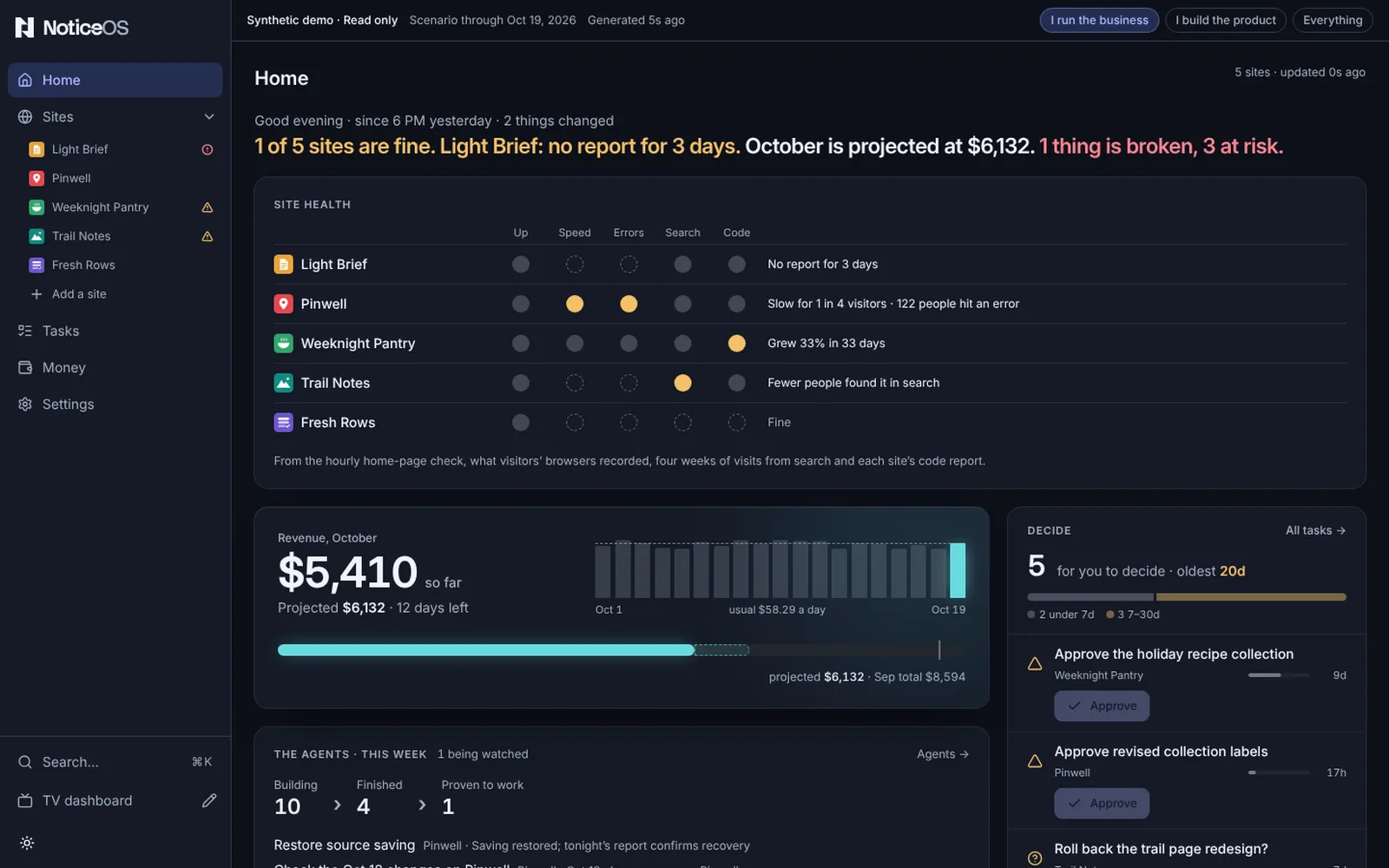
The demo is the real NoticeOS app with synthetic data. Five fictional sites, their traffic, search counts, revenue estimates, tasks and workflows are generated by a simulator that keeps running after setup. A banner on every page shows that the data is synthetic and when it was last generated.
Visitors can explore Sites, Money, Tasks, Workflows, Integrations, Settings and the Wall. They cannot change data, connect a provider or sign up. No analytics provider or calendar feed is called; every number is derived from the scenario. The demo is a public preview, not customer account hosting.
- Integrations shows Google (Analytics and Search Console), Bing and the ad network as connected through demo connections. A demo connection stores no login and fetches nothing; its syncs are the collection runs the simulator records, so a failed run shows that source failing until the next one succeeds.
- Workflows shows three workflows, each run once as the demo starts and then every hour, so their runs are there from the first minute.
The demo package runs the compiled app, Postgres and Dolt on a Linux server or VM, including a Proxmox VM, behind an HTTPS reverse proxy you provide. To run your own copy you need:
- Docker with Compose, and at least 8 GiB free after about 4 GiB for the first build.
- An exact 40-character source commit, built from the history-free public source export for that commit.
- A public HTTPS origin and a TLS reverse proxy on the same VM, or in a container sharing Dolt's network namespace. The proxy must pass the exact
Hostheader and browserOriginthrough.
Only the app's HTTP port is published, on the host's loopback. Postgres has no host port.
Switch the view
The banner at the top of every page, the TV dashboard included, holds three choices at its end: I run the business, I build the product and Everything. On a phone they sit on a line below the banner's text. Pressing one redraws the Tower in that view at once: the sidebar's pages, Home's sections and each site's tabs.
The TV dashboard at /wall follows the same choice. I run the business and I build the product show that view's layout; Everything shows the demo's own layout. To open the TV dashboard in one view without pressing anything, add ?view=business, ?view=product or ?view=everything to its address.
The choice is kept in the visitor's browser, so it stays after a reload and no other visitor sees it.
See Choose your view for what each view changes.
Configure
- Copy
deploy/demo/example.jsonanddeploy/demo/example.envto a private folder outside the checkout, for example/operator/. - In the JSON, set the full source commit, an exact UTC cutoff (
YYYY-MM-DDTHH:mm:ss.sssZ, not in the future) and a futureserviceExpiresAtwithin 366 days. After this time the simulator is no longer allowed to update the demo; a restart does not extend it. - In the env file, set the exact image tag, the absolute config path and an unused loopback port. These examples use
demo-preview,/operator/demo.envand port16448. - Choose a new Compose project name. Never reuse an existing installation's project or volumes.
Build and start
In the checkout, build the image and check the Compose file:
shdocker build --build-arg NOTICEOS_SOURCE_COMMIT=FULL_SOURCE_COMMIT -f deploy/demo/Dockerfile -t noticeos-demo:FULL_SOURCE_COMMIT . docker compose --env-file /operator/demo.env -p demo-preview -f deploy/demo/compose.yaml config --quietPrepare, start the stores, run setup, then start the app:
shdocker compose --env-file /operator/demo.env -p demo-preview -f deploy/demo/compose.yaml run --rm --no-deps prepare docker compose --env-file /operator/demo.env -p demo-preview -f deploy/demo/compose.yaml up -d --wait postgres dolt docker compose --env-file /operator/demo.env -p demo-preview -f deploy/demo/compose.yaml run --rm setup docker compose --env-file /operator/demo.env -p demo-preview -f deploy/demo/compose.yaml up -d --wait app
Setup applies the schema to its new empty store, creates the demo workspace, seeds the scenario and writes private runtime configuration.
Counting visitors is optional
Set NOTICEOS_DEMO_STATCOUNTER=project:security in the private env file to add a Statcounter tag, then recreate the app. When it is unset, the pages include no analytics.
Stop, restart and update
To stop without deleting data, run:
shdocker compose --env-file /operator/demo.env -p demo-preview -f deploy/demo/compose.yaml stop app dolt postgresAllow up to 90 seconds.
To restart, run the
upcommands from Build and start again, without running preparation or setup.To update, keep a copy of
deploy/demo/update.shoutside the checkout and run it on the demo host:sh/operator/update.sh --env /operator/demo.env --source /operator/src /operator/update.sh --env /operator/demo.env --source /operator/src --commit FULL_SOURCE_COMMIT
A compatible release changes only the image tag and recreates Dolt and the app. A release with a different scenario version or schema gets a fresh generation: a new project (demo-g2, demo-g3, …) with new volumes, seeded from scratch and started in place of the old one on the same port. The script takes no backup; take one first.
Each build adds an image of about 2 GB, so the script keeps the disk from filling. Before building it needs 12 GiB free for Docker; with less, it removes demo images no container uses, but never the running release. If that is still not enough it stops before changing anything and prints the command to purge each stopped generation. After a healthy update it removes unused demo images again, keeping the new release and the one it replaced. It never removes a container or a volume.
Back up a demo
- Stop the app, Dolt and Postgres.
- Back up all four named volumes together into a new private folder with mode
0700. The exactdocker runcommands are in the demo guide on GitHub: https://github.com/notice-cx/NoticeOS/blob/main/deploy/demo/README.md. - Restore only into a new project with four new empty volumes, never over an existing store.
Verify
On the demo host, run the health check:
shcurl --fail --header 'Host: demo.example.com' http://127.0.0.1:16448/__noticeos_healthA healthy demo returns
{ "ok": true }.Open the demo through your HTTPS proxy. Every page shows the synthetic-data banner with the time the data was last generated.
If it didn't work
- Setup fails: keep the volumes for diagnosis; do not delete them to force a retry.
- A new generation fails its health check after an update: the script starts the previous generation again.
- The app rejects the hostname: the proxy must pass the exact
Hostheader and browserOriginthrough. See Troubleshooting.